

Content
Draft, schedule, and publish LinkedIn posts from Obert.
Content is where you write LinkedIn posts for connected senders, queue them, and review performance.
- Click Content in the left sidebar.
- Stay on Posts, or open Analytics for reach and engagement.
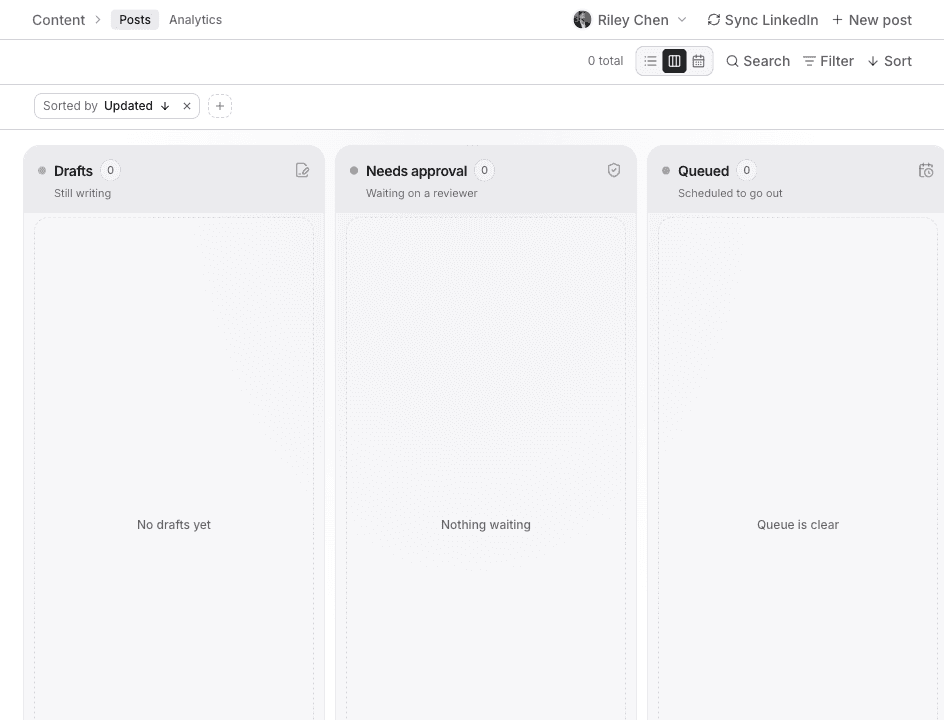
The header shows which LinkedIn account you are posting as. Use that picker when you manage more than one sender.
Create a post
- On Posts, click New post.
- Write the post. Obert saves drafts as you type.
- Pick a send time in the schedule control, or leave it for later.
- Click Schedule, or open the menu next to it and choose Publish now.
Other composer actions:
- Save as draft keeps the post in Draft without queueing it.
- Submit for approval sends the post to a reviewer when your workspace requires sign-off.
- Approve only and Approve & schedule appear when you review someone else's request.
- Reschedule and Pause apply to posts already on the queue.
- Save changes is for edits to a post that is already live on LinkedIn.
Work with posts
Sync LinkedIn pulls posts that already exist on LinkedIn into Obert for the selected account.
Search posts... filters the list. On list view, Filter, Display, Sort, and Save match the rest of Obert.
Switch layout with List view, Board view, or Calendar view:
| Layout | Use it to |
|---|---|
| Board view | Drag posts between Drafts, Needs approval, Queued, Published, and Paused |
| List view | Scan rows with columns such as Content, Account, Status, and Scheduled |
| Calendar view | See All or Queued posts on a month or week calendar |
List and board views use these tabs:
| Tab | Shows |
|---|---|
| Draft | Posts still being written |
| Approval | Posts waiting for review |
| Queued | Posts scheduled or publishing |
| Published | Live posts |
| Paused | Posts removed from the queue |
Right-click a post for actions such as Publish now, Schedule…, and Duplicate.
Analytics
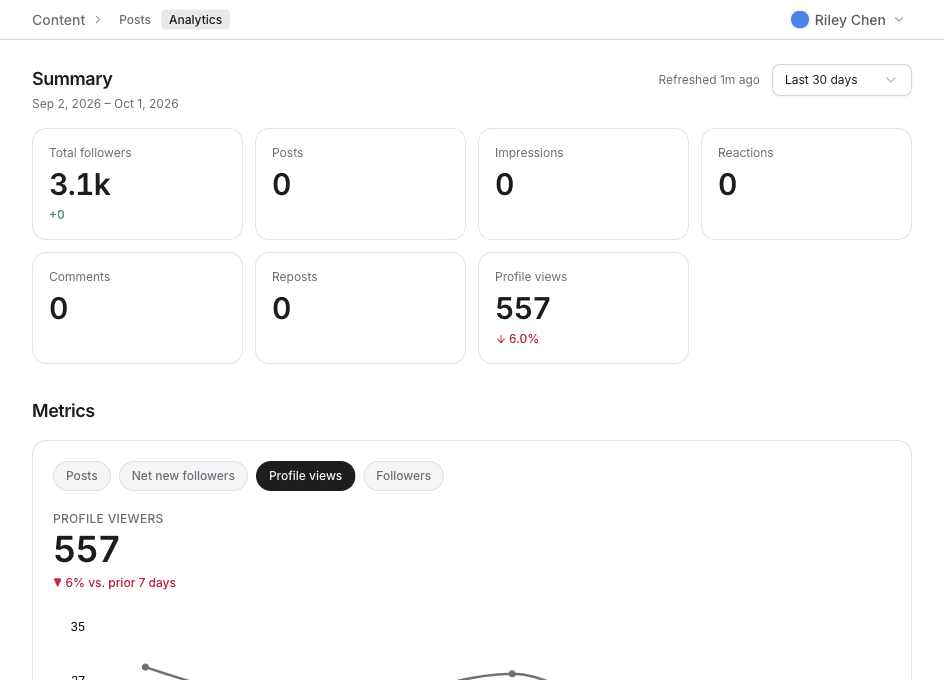
- Click Analytics on the Content header.
- Change the date range to see impressions, reactions, comments, and reposts for published posts.
This tab is post reach. Outbound results (replies, acceptance, calls) are in Analytics, under Insights.
Who can publish
- Open Settings.
- Under Content, click Content.
- Set Team amplification per LinkedIn account.
- Under Publishers, choose who may post. For each person, pick Publish only or Publish and approve.
Only listed publishers can send from that account. Publish and approve lets them approve other people's posts too.