

Tasks
Work campaign drafts and the follow-ups you add yourself.
Tasks is the queue of work that needs a person. Campaign drafts and one-off follow-ups both land here.
- Click Tasks in the left sidebar.
- Use Campaign tasks or Manual tasks.
- Use All, Due, Scheduled, or Done.
You land on Due.
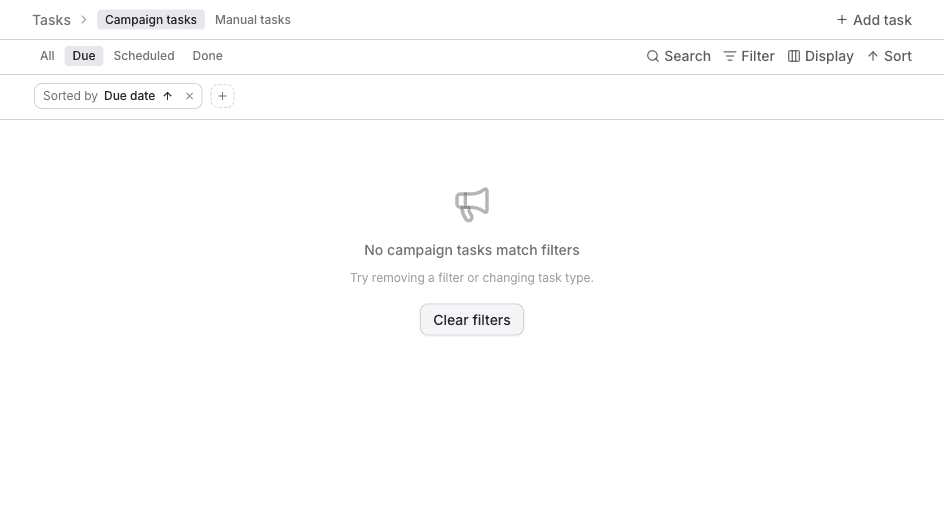
Add task creates a follow-up that is not part of a campaign.
Campaign tasks
Campaign tasks are drafts and calls a sequence is waiting on you to handle.
| How it gets here | What you do |
|---|---|
| Send a message, Send InMail, or Send email with Require approval before sending | Open the task and click Approve. |
| Add to call queue | Call the lead, then Mark done or Skip. |
- Open the task. The action is Review.
- Click Approve to send a message or email on the next window.
The task menu also has Send now, Re-generate, Rewrite, and Remove from campaign. Remove from campaign takes the lead out of the campaign and clears the draft.
Filter can limit the list by Task type: LI message, Call, or email.
When the queue is empty, Due says No campaign tasks due. If a filter is on, it says No campaign tasks match filters.
Manual tasks
Manual tasks are follow-ups you add yourself.
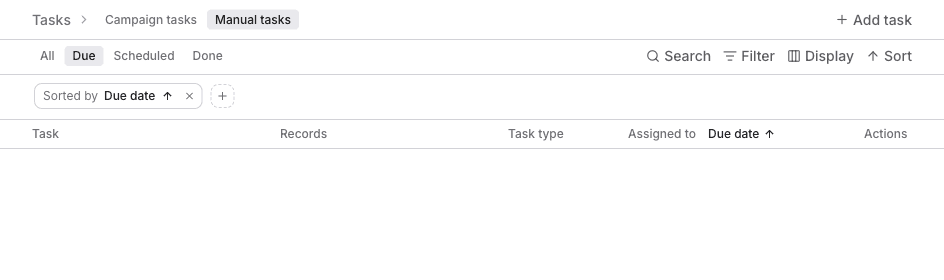
The columns are Task, Records, Task type, Assigned to, Due date, and Actions.
An empty Due view says No follow-ups due. All says No follow-ups yet.
Add a task
- Click Add task.
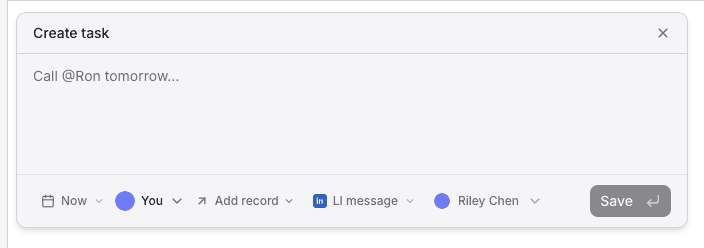
- In Create task, write the task. Type
@to mention a lead. - Leave the schedule on Now, or pick 1 hour, 3 hours, Tomorrow, or 3 days. A future time shows under Scheduled until it is due.
- Set who owns it. You is the default.
- Click Add record to attach a lead or a company.
- Set the type to Call, LI message, or email.
- For LI message, pick the LinkedIn account that sends it.
- Click Save.
Right-click a manual task for Mark done or Delete. Completed and skipped follow-ups move to Done.