

Labels
Tag inbox conversations and choose what happens when a label is applied.
Labels tag LinkedIn and email conversations. Obert also uses a label's definition when it classifies a reply. The action on that label is what happens to the lead next.
- Open Settings.
- Under Inbox, click Labels.
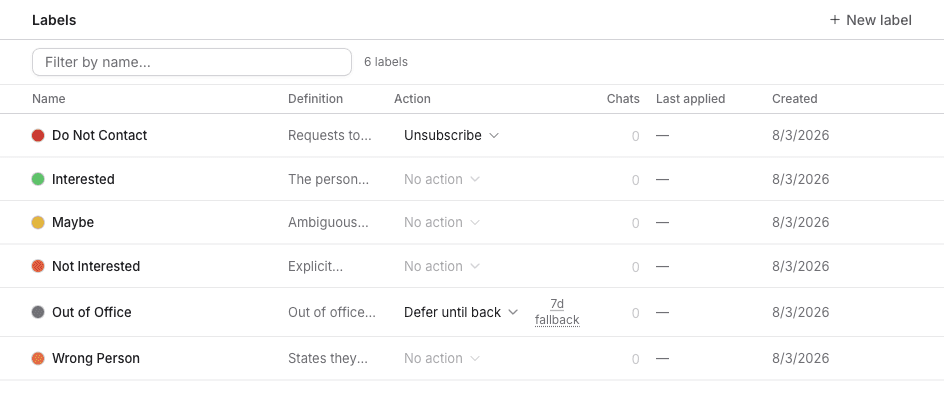
The table columns are Name, Definition, Action, Chats, Last applied, and Created. Filter by name… searches the list.
Create a label
- Click New label.
- Enter a Name. The placeholder is
e.g. Hot lead. - Add a Definition when you want the reply classifier to know when to apply it. The field is optional.
- Click Create.
Click a name or definition in the table to edit it in place. The row menu also has Edit name, Edit definition, Archive, and Delete.
Choose an action
The Action menu on each label is what happens when that label is applied to a reply:
| Action | What it does |
|---|---|
| No action | Labels the reply and leaves the next step to you |
| Defer follow-ups | Waits until the return date in the reply, then continues the sequence. When the reply has no date, it waits the fallback number of days. On the label this shows as Defer until back |
| Stop sequence | Ends outreach for this lead and keeps them contactable |
| Unsubscribe | Stops outreach and adds the lead to Do-Not-Contact |
The built-in labels ship with actions already set. Do Not Contact is Unsubscribe. Out of Office is Defer until back. The others are No action.
Apply a label
- In Inbox, right-click a conversation.
- Click Apply labels.
- Choose the label.
Label on the inbox toolbar filters the list to conversations with that label.
See Reply classification for how Obert applies these labels on its own.