

Connect Your LinkedIn Account
Connect a LinkedIn account in Senders so Obert can discover leads, send outreach, and sync your inbox.
A connected LinkedIn account is a sender. Signals, campaigns, Warmup, and the inbox all act through it.
Connect an account
- Open Settings from the bottom of the left sidebar.
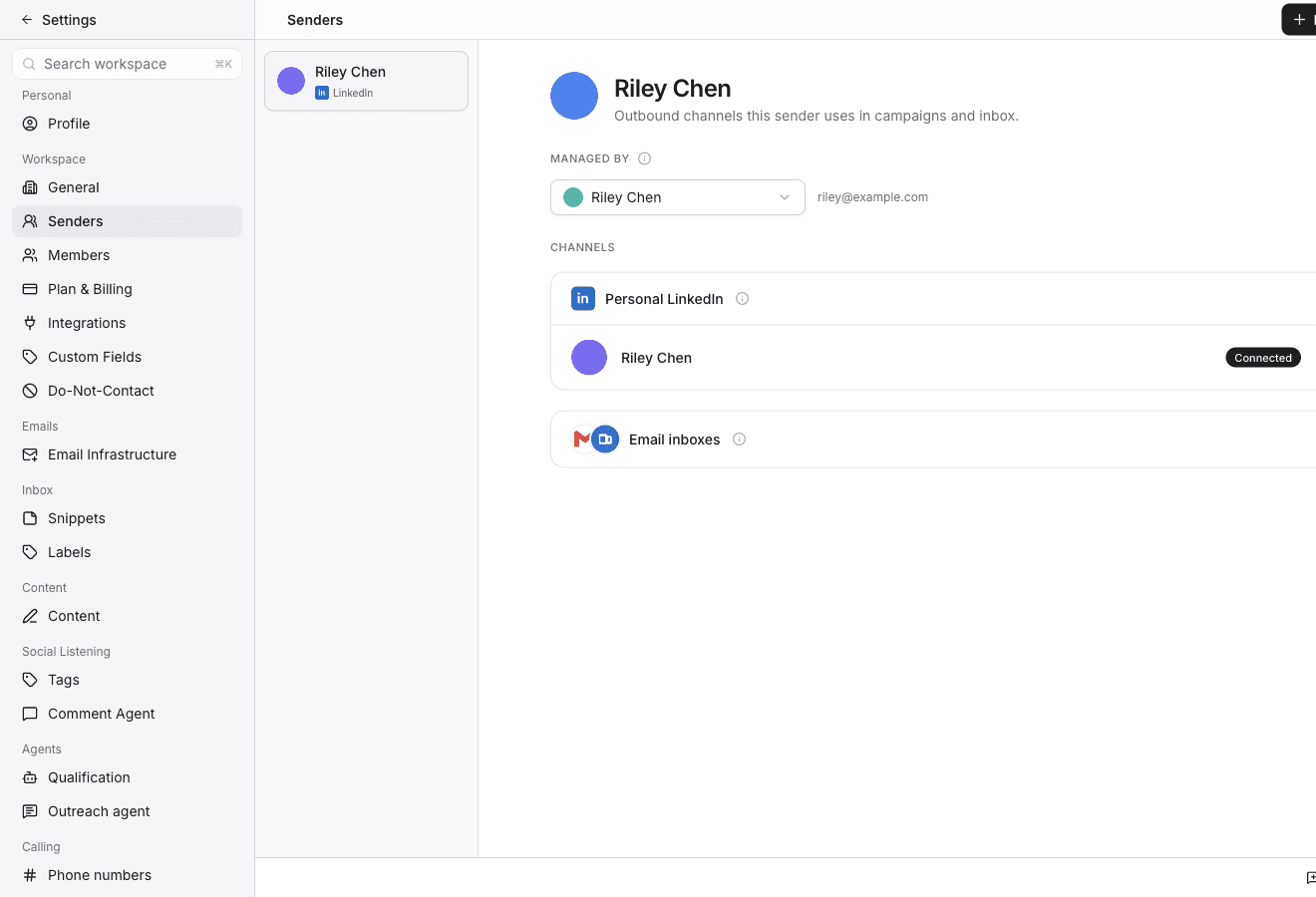
- Click Senders.
- Click New sender.
- Next to Personal LinkedIn, click Connect LinkedIn.
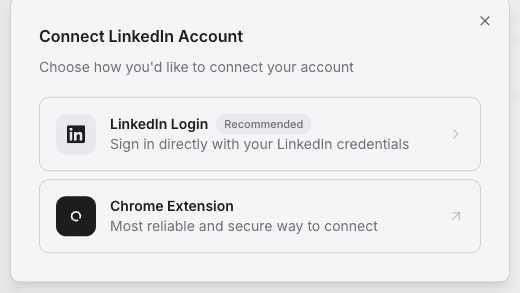
- In Connect LinkedIn Account, click LinkedIn Login.
- Sign in with the LinkedIn account you want to connect and authorize Obert.
The account shows Connected under Personal LinkedIn.
Chrome Extension is the other option in that dialog. Use it when you want the connection to run through the Obert extension instead of a LinkedIn login window.
Set daily limits
Each account has a cap on how much Obert will do in a day.
- Click the account in Senders.
- Under Daily Limits, set the maximums you want. Outreach covers Connections, Messages, and InMails. Engagement covers Likes, Profile views, Follows, and Withdrawals.
Changes save as you edit them.
More than 30 connection requests a day can get the account restricted. Start lower and raise the limit after the account has been sending cleanly.
Set working hours
On the same account page, Working Hours is the window Obert is allowed to act.
Turn on Send during the recipient's working hours when you want sends to follow the lead's timezone. Obert uses the account's own hours when it cannot tell where the lead is.
More than one account
Connect as many accounts as your plan allows. Campaigns and Signals Feed can spread outreach across them. Use separate accounts when different people sell from their own profiles, or when you want to keep daily volume down on any one account.
Reconnect an account
- Open Settings → Senders.
- Click the account.
- Click Reconnect.
- Choose LinkedIn Login or Chrome Extension again.
Campaigns, chats, and contacts stay attached to the account.
Remove an account
- Open Settings → Senders.
- Click the account.
- Under Remove Account, click Remove.
Removing an account stops campaigns and signals that send from it. Leads and conversation history stay in the workspace.
Troubleshooting
| Problem | What to do |
|---|---|
| The account is not connected | The LinkedIn session expired. Open the account and click Reconnect. |
| Outreach is not sending | Open the account and check Daily Limits. A limit of 0, or a limit you already hit today, blocks that action. |
| LinkedIn restricted the account | Obert pauses activity on that account and resumes when the restriction lifts. |