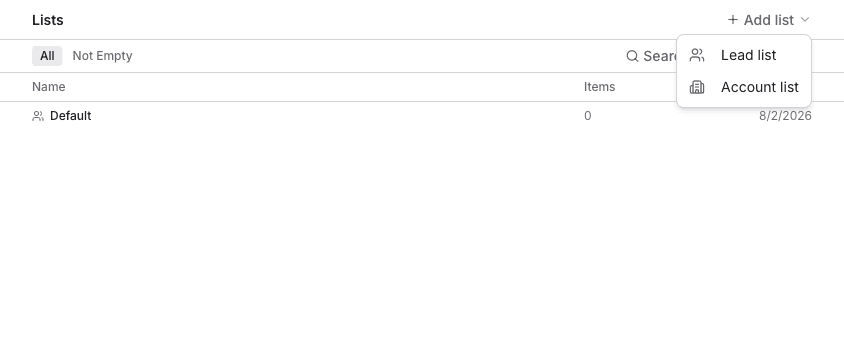
Lists
Create a List
Create a lead or account list to organize your prospects for campaigns and integrations.
Lists are the foundation of outreach in Obert. Create a list, fill it with qualified leads, and use it as the audience for campaigns or integration syncs.
Create a new list
- Click Lists in the left sidebar.
- Click Add List in the top-right corner.
- Choose the list type:
- Lead List — for individual people
- Account List — for companies
- Enter a name for your list.
- Click Create.

Your list is created and ready to receive leads.
Add leads to the list
There are several ways to populate your list:
From the leads table
- Go to Leads in the left sidebar.
- Select one or more leads using the checkboxes.
- Click Add to List in the floating action bar.
- Select your list from the dropdown.
From a signal
- Open a signal's settings.
- Under Auto-Add, select your list.
- Every time the signal runs, matching leads are automatically added.
Via CSV import
- Open your list's detail page.
- Click Import in the toolbar.
- Upload a CSV file with LinkedIn profile URLs or names.
- Map the CSV columns to Obert fields.
- Click Start Import.
From other lists
- Go to Lists.
- Select two or more lists using the checkboxes.
- Click Combine (union) or Intersect to create a new list from the overlap.
Configure ICP scoring
Each list can have its own ICP (Ideal Customer Profile) criteria to score how well each lead matches your target for that specific campaign or segment.
- Open your list and click the ICP tab.
- Describe your ideal customer in natural language, or configure structured criteria:
- Target job titles
- Target companies or industries
- Target locations
- Click Score Leads to calculate scores for all leads in the list.
Leads are scored on a 0–100 scale and categorized as High, Medium, or Low.
Export a list
- Open the list detail page.
- Click Export in the toolbar.
- Choose CSV format.
- The file downloads with all lead data and scores.