

Analytics
Annotations
Mark a date on outbound charts so the team can see why a number moved.
An annotation is a dated note on an over-time chart. Use one when you change a sequence, pause a campaign, or launch a new message, so the next person reading the chart knows what happened that week.
- Open Settings.
- Under Analytics, click Annotations.
- Click New annotation.
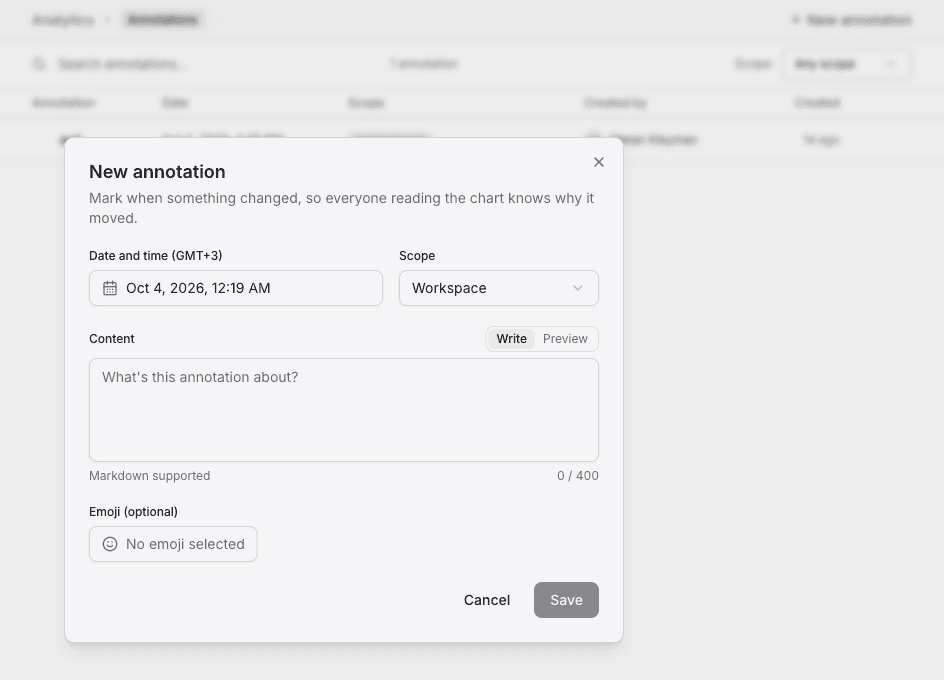
You can also start one from a chart. Right-click a point and choose Add annotation. The date defaults to that bucket, and the scope defaults to the dashboard or the report you opened it from.
What you fill in
| Field | What it does |
|---|---|
| Date and time | When the note sits on the chart. It lands in the bucket that contains that local date |
| Scope | Workspace shows on every over-time chart. Dashboard shows on that dashboard's tiles. Report shows on that report, in the builder and on every dashboard that includes it |
| Content | The note, up to 400 characters. Write and Preview switch the markdown view |
| Emoji (optional) | The mark drawn on the chart. With no emoji, the badge shows how many notes sit in that bucket |
Save stores the note. On the Annotations page, click a row to edit it. The page can Search annotations... and filter Scope to Any scope, Report, Dashboard, or Workspace.
Badges appear on line, area, bar, and stacked bar charts. Hover a badge to read the notes, edit one, or add another.