

Build a report
Save a chart of outbound metrics, then reuse it on dashboards.
A report is one chart. Dashboards are made of reports.
- Click Analytics in the left sidebar.
- Open Reports.
- Click New report, or open a saved one.
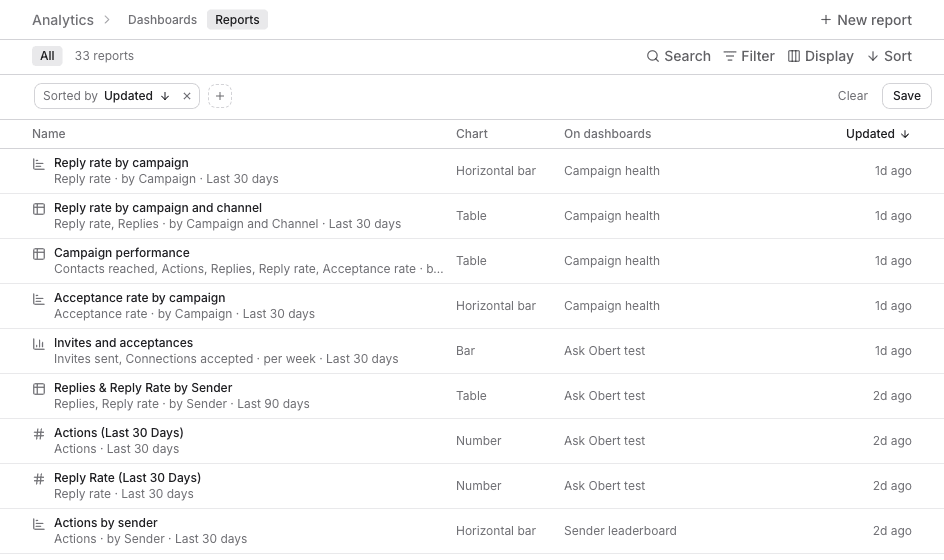
The columns are Name, Chart, On dashboards, and Updated. The line under the name describes the chart, for example Reply rate · by Campaign · Last 30 days.
Right-click a report for Duplicate or Delete. Deleting a report removes it from every dashboard that shows it.
The builder
The left side is what the chart counts. The right side is the live result.
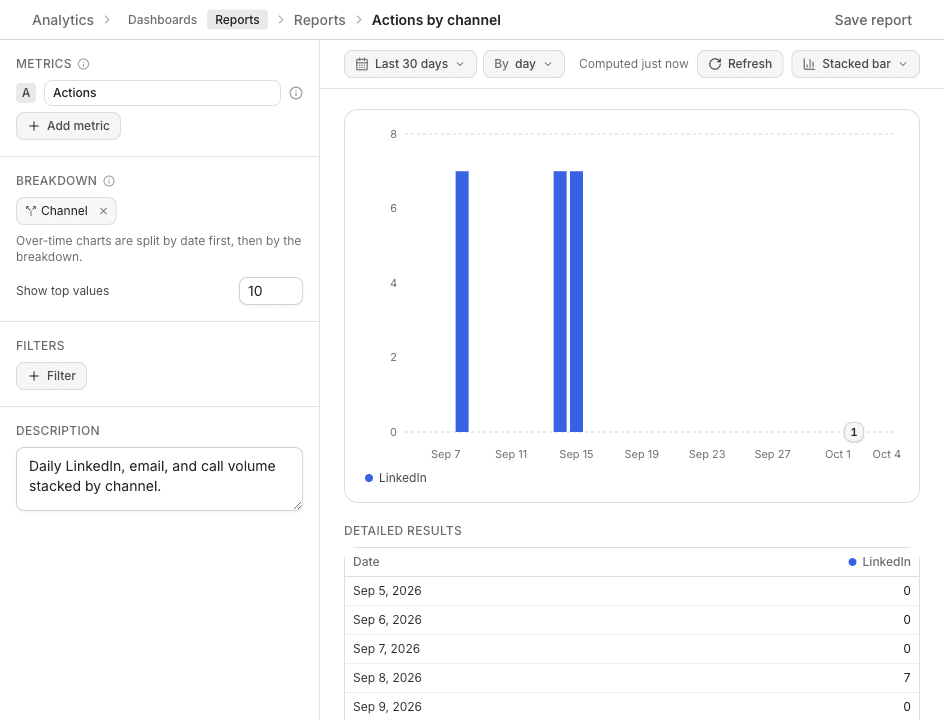
| Section | What you set |
|---|---|
| Metrics | The series. Add metric adds another. A number card and a pie chart take one metric |
| Breakdown | Split by Date, Campaign, Sender, Channel, Step type, Reply classification, or Call outcome. Show top values keeps the top rows and folds the rest into Other |
| Filters | Limit this report. A filter that does not apply to the metric is skipped, and the chart says why |
| Description | A sentence for whoever reads the dashboard |
Above the chart:
- The date control is Last 30 days by default. Presets run from Today through All time, plus a custom range.
- By day, By week, or By month sets the buckets on a time chart.
- Compare to previous period appears on a Number card and a Table.
- Refresh reruns the preview. Computed is when this result was calculated.
- The chart menu switches type. Time charts are Line, Area, Bar, and Stacked bar. Totals are Number, Bar (totals), Pie, and Table.
Detailed results is the same numbers in a table. Click a row to open the contacts behind it.
Save report stores the chart. From a dashboard, Add to dashboard saves it and returns to that page. Save and return does the same on a report you are editing. Leave without saving and the draft is discarded.
What the numbers mean
Counts are when the activity happened in the range. Actions, Invites sent, Emails sent, Calls made, and Replies are counts.
Rates are about the people first reached in the range.
| Rate | Meaning |
|---|---|
| Acceptance rate | Of the people first invited in the range, the share who accepted |
| Reply rate | Of the people first messaged on LinkedIn or email in the range, the share who replied |
| LinkedIn reply rate | The same, LinkedIn only |
| Email reply rate | The same, email only |
| Call answer rate | Answered calls divided by calls placed |
| Positive reply rate | Replies classified as Interested, divided by replies |
An empty rate says why, for example No one was first messaged in this range.
These rates use the same acceptance and reply flags as the campaigns table.