

Read a dashboard
Filter a dashboard, rearrange tiles, and open the contacts behind a number.
Open a dashboard from Analytics → Dashboards. The toolbar applies to every tile on the page.
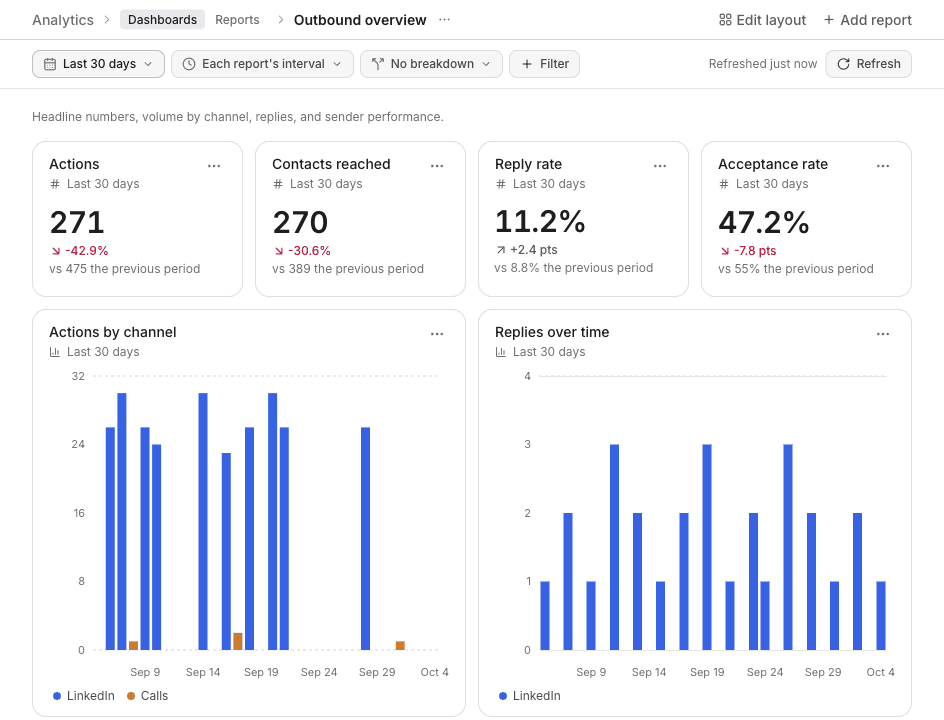
Change what the page shows
| Control | What it does |
|---|---|
| Last 30 days | Replaces the date range on every tile, unless that tile has its own |
| Each report's interval | Switches charts to By day, By week, or By month |
| No breakdown | Splits every chart by campaign, sender, channel, step type, reply classification, or call outcome, when the metric supports it |
| Filter | Limits the page, for example to one campaign or one sender. Filters combine with each report's own filters |
| Refresh | Reruns every tile. Refreshed is the oldest result still on screen |
Save filters keeps the toolbar for the next time you open the dashboard. Discard drops unsaved changes. Until you save, the tiles already use the draft.
A breakdown the metric cannot take stays off that tile, and the tile says so in its subtitle.
Tiles
Edit layout lets you drag and resize tiles. Add report puts another chart on the page.
Add report offers:
- Templates, grouped as Numbers, Trends, Breakdowns, Tables, and Calls
- Saved reports, charts you already built
- New report, which opens the builder and can add the chart to this dashboard
- Add a note, a text tile on the grid
The tile menu (the … on a chart) has Edit report, Chart type, Tile settings, Duplicate, Refresh, and Remove from dashboard. Removing a tile keeps the report.
Tile settings is for one tile only:
- Ignore dashboard filters keeps that tile on its own dates, filters, and breakdown.
- Date range and Interval replace the dashboard's for this tile. Use the dashboard's clears the override.
- Clear overrides returns the tile to the dashboard toolbar.
- Save stores the override.
The people behind a number
Click a bar, a point, a slice, a table cell, or a headline number. The tooltip ends with Click to view contacts.
The dialog lists the people who make up that value. Search filters the list. Download CSV exports it. Add to list puts them on a lead list. Open as report starts a new report from that slice.
Right-click a value for View contacts, Break down by, Filter to, Exclude, Open campaign, Zoom into this day (or week, or month), Add annotation, and Copy value.
Rates open the people in the denominator, with tabs for who converted and who did not. A reply rate lists who was messaged, split into Replied and No reply.