

Design a sequence
Build the LinkedIn and email steps a campaign runs.
A sequence is the path each lead follows. LinkedIn and email are both steps in that path. Email is not sent through another tool.
Pick a starting point
On the Sequence step, filter templates with All, Connect, Warm up, Saved, or Campaigns.
| Category | What it shows |
|---|---|
| All | Every template. |
| Connect | Sequences built around a connection request. |
| Warm up | Sequences that view and like before connecting. |
| Saved | Templates you saved. |
| Campaigns | Sequences from your other campaigns. |
Built-in templates include Full Outreach, Connect & Message, Warm Engagement, and Quick Connect.
- Click a template. A preview opens.
- Click Use this template. On Campaigns, the button is Use this sequence.
- Or click From scratch to start with an empty path.
If a sequence is already on the canvas, From scratch is Keep current sequence, and Replace from template returns to the template list.
Edit the canvas
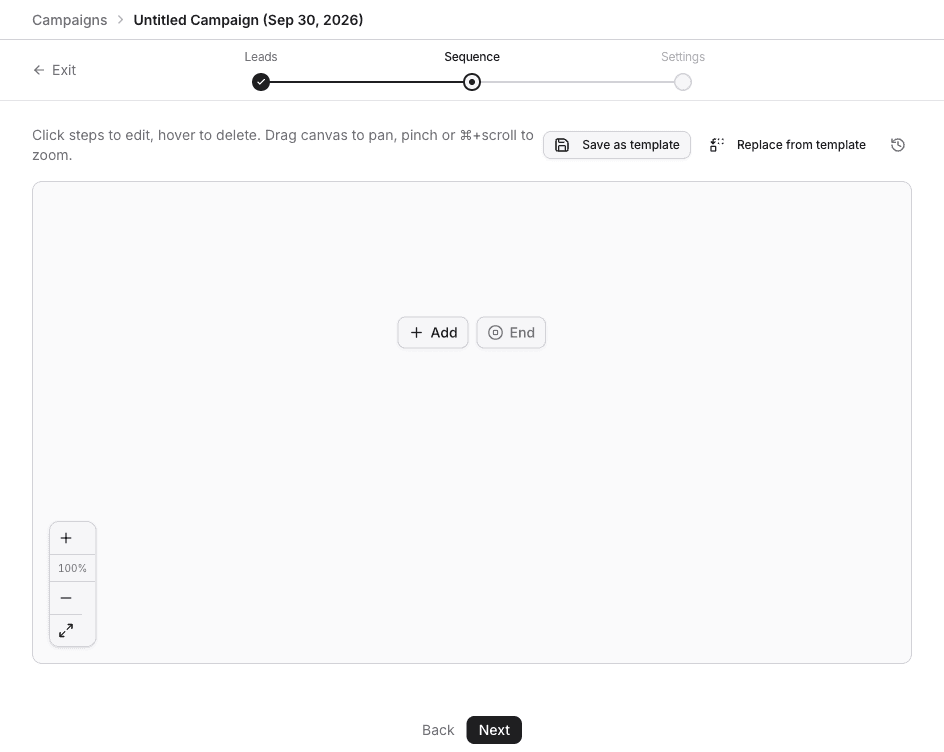
- Click Add to insert the first step. On a step that is already on the canvas, the control is Add step below.
- Search or pick a step. The picker groups them into Actions, Conditions, and Integrations.
- Click a step on the canvas to edit it. Hover a step to delete it.
- Drag the canvas to pan. Pinch, or hold ⌘ and scroll, to zoom.
End stops that branch. Save as template stores the sequence for later. The clock icon opens sequence version history.
Send email stays disabled until a sender on the campaign has a mailbox. The hint is Needs a sender with email.
LinkedIn steps
| Step | What it does |
|---|---|
| Send an invite | Sends a LinkedIn connection request. Branches on Accepted and Still not accepted. |
| Send a message | Sends a LinkedIn message to a connection. Branches on Replied and No reply. |
| Send InMail | Sends an InMail. The sender needs Sales Navigator. Branches on Replied and No reply. |
| View profile | Visits the lead's profile. |
| Like a post | Likes the lead's most recent post. |
| Endorse skills | Endorses one of the lead's top skills. |
| Follow | Follows the lead's profile. |
| Invite to follow company | Invites the lead to follow your LinkedIn company page. |
| Withdraw invite | Withdraws a pending connection request. |
| Step | What it does |
|---|---|
| Send email | Sends an email. The lead needs a revealed email address, and the sender needs a connected mailbox. Branches on Replied and No reply. |
Send email can skip or fail when the lead has no email, the sender has no mailbox, or the message bounces. A later email can stay in the same thread, or start a new one.
Set up the mailbox under the sender's Email inboxes, or in Email infrastructure.
Timing and branches
| Step | What it does |
|---|---|
| Delay | Waits before the next step. |
| If connected | Branches on whether you are already connected. |
| If viewed message | Branches on whether the lead viewed your last message. Needs a sent message or InMail earlier in the path. |
| If open profile | Branches on whether the lead has an Open Profile. |
| If had chat | Branches on whether this sender has already chatted with the lead. |
Handoffs
Add to Warmup, Add to call queue, Send Slack notification, and Send HTTP request sit under Integrations in the step picker. Those are on Handoffs from a sequence.