

Campaigns
Campaign templates
Start a sequence from a template, or save one to reuse.
Templates are sequences you can drop into a campaign. They store the steps, branches, and delays. They do not store the leads or the senders.
Start from a template
- Open the campaign wizard.
- Go to Sequence.
- Filter with All, Connect, Warm up, Saved, or Campaigns.
- Click a template.
- Click Use this template. On Campaigns, the button is Use this sequence.
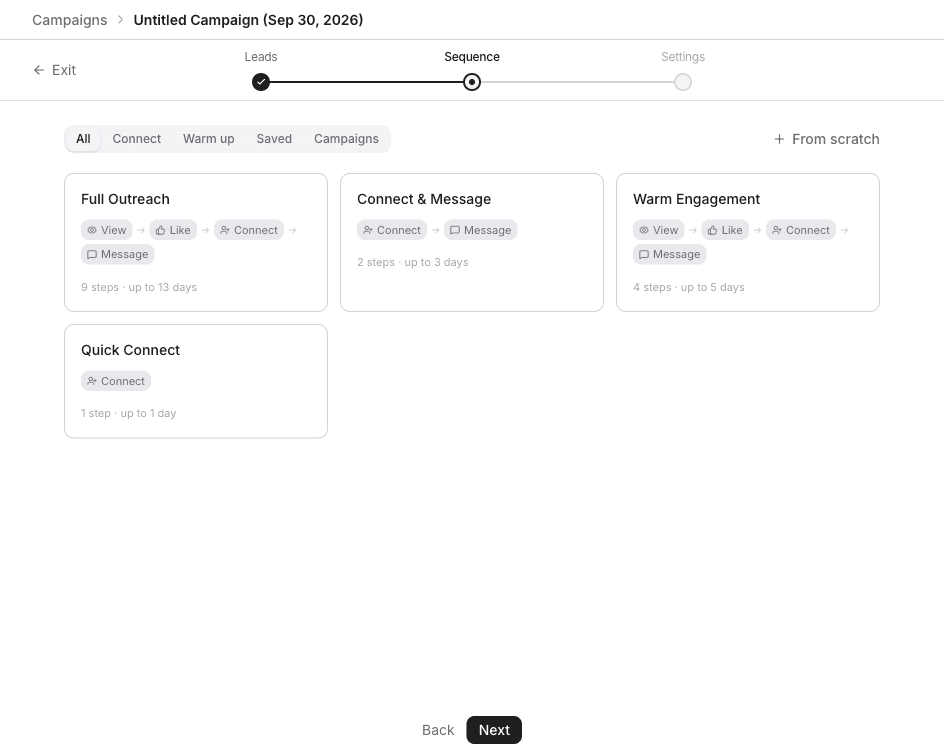
Saved is templates you stored. Campaigns copies a sequence from another campaign. From scratch skips the templates.
Built-in templates:
| Template | What it does |
|---|---|
| Full Outreach | View profile, like a post, connect, then follow-ups. InMail if the invite is not accepted. |
| Connect & Message | Send an invite, wait for acceptance, then send a message. |
| Warm Engagement | View profile, like a post, then connect and follow up. |
| Quick Connect | Send a connection request with no follow-up. |
Save a sequence
- Build the sequence on the canvas.
- Click Save as template.
- In Save as Template, enter a Template Name. Description is optional.
- Click Save.
The template shows under Saved the next time you open Sequence.
Replace the current sequence
- On the canvas, click Replace from template.
- Pick another template.
Keep current sequence leaves the canvas as it is.