

Connect LinkedIn with a Google sign-in
Connect a LinkedIn account that uses Continue with Google, with the Chrome extension or a LinkedIn password.
You can connect a LinkedIn account that you open with Continue with Google. Obert has no Google button on LinkedIn Login. Use the Chrome extension while that account is already open in Chrome, or set a LinkedIn password and sign in with it.
The same steps cover an account you open with Apple.
Use the Gmail address on the LinkedIn account. Do not type your Gmail password into Obert. LinkedIn Login accepts the LinkedIn password only.
Prerequisites
- The Gmail address saved on the LinkedIn account
- Chrome, signed in to that LinkedIn account, if you use the extension
Connect with the Chrome extension
Use this when the account has no LinkedIn password. The extension reads the LinkedIn session already open in Chrome. Google sign-in on LinkedIn is enough.
- In Chrome, open LinkedIn and confirm you are on the account you sell from.
- In Obert, open Settings from the bottom of the left sidebar.
- Click Senders.
- Click New sender.
- Next to Personal LinkedIn, click Connect LinkedIn.
- In Connect LinkedIn Account, click Chrome Extension.
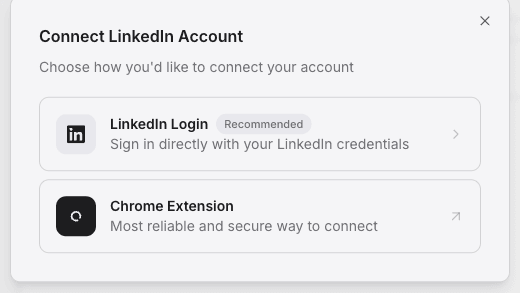
- If Chrome opens the Chrome Web Store, install Obert, then return to the Obert tab. The dialog stays on Installing Extension... until the extension is there.
- Obert detects the LinkedIn account in this browser and connects it.
The dialog title changes to Account Connected. On Senders, the account shows Connected under Personal LinkedIn.
Set a LinkedIn password, then use LinkedIn Login
Use this when you want LinkedIn Login. A Google-only account has no LinkedIn password yet. LinkedIn's help says Google sign-in does not create one. The Change password page asks for the current password, so it cannot be the first password. Set one from Forgot password? instead. LinkedIn's reset steps are the source for the checks below.
- Open LinkedIn's sign-in page.
- Click Forgot password?.
- Enter the Gmail address on the LinkedIn account.
- Enter the code LinkedIn sends to that Gmail inbox. LinkedIn can also ask you to approve the reset in the LinkedIn app.
- Create a password and save it.
- Sign in on LinkedIn with that Gmail address and the new password. Leave the Google button alone for this check.
Then connect the account in Obert:
- Open Settings → Senders.
- Click New sender.
- Next to Personal LinkedIn, click Connect LinkedIn.
- Click LinkedIn Login. Obert opens Sign in to LinkedIn.
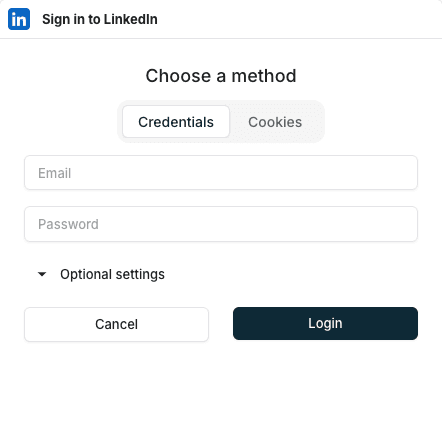
- Leave Credentials selected.
- In Email, enter the Gmail address on the LinkedIn account.
- In Password, enter the LinkedIn password you just set.
- Click Login.
- Finish any code or app approval LinkedIn asks for.
The account shows Connected under Personal LinkedIn.
On LinkedIn's own sign-up page, Continue with Google can create a second LinkedIn account when one already uses that Gmail address. Connect the account you already sell from.
Troubleshooting
| Problem | What to do |
|---|---|
| Obert says no LinkedIn account was found | Sign in to LinkedIn in this Chrome window, on the account you want, then click Chrome Extension again. |
| Wrong email or password | The email is the Gmail address on the LinkedIn account. The password is the LinkedIn password from Forgot password?, not the Gmail password. |
| The extension tab never finishes | Install Obert from the Chrome Web Store, then click Chrome Extension again. |
| You connected a different account | Remove it from Senders, sign in to the right LinkedIn account in Chrome, and connect again. |
| LinkedIn restricted the account | Unlock it on LinkedIn, then click Reconnect on the account in Senders. |
What's next
- Connect your LinkedIn account covers limits, working hours, and reconnecting.
- Senders covers more than one account on a sender.