

Signals Feed
Create a Signal
Add a signal so qualified people start showing up in Signals Feed.
Create a signal when you want Obert to keep watching a source for you. The steps are the same for every type. The Source step is the only one that changes.
Prerequisites
- A connected LinkedIn account, for any LinkedIn signal
- A qualification agent. Onboarding creates one. Add another in Settings → Qualification if this signal needs a different buyer.
Create the signal
- Click Signals Feed in the left sidebar.
- Open the Signals tab.
- Click Add signal.
- Choose a type. Engagers with my content is the simplest first signal: it watches likes and comments on the account you connect.
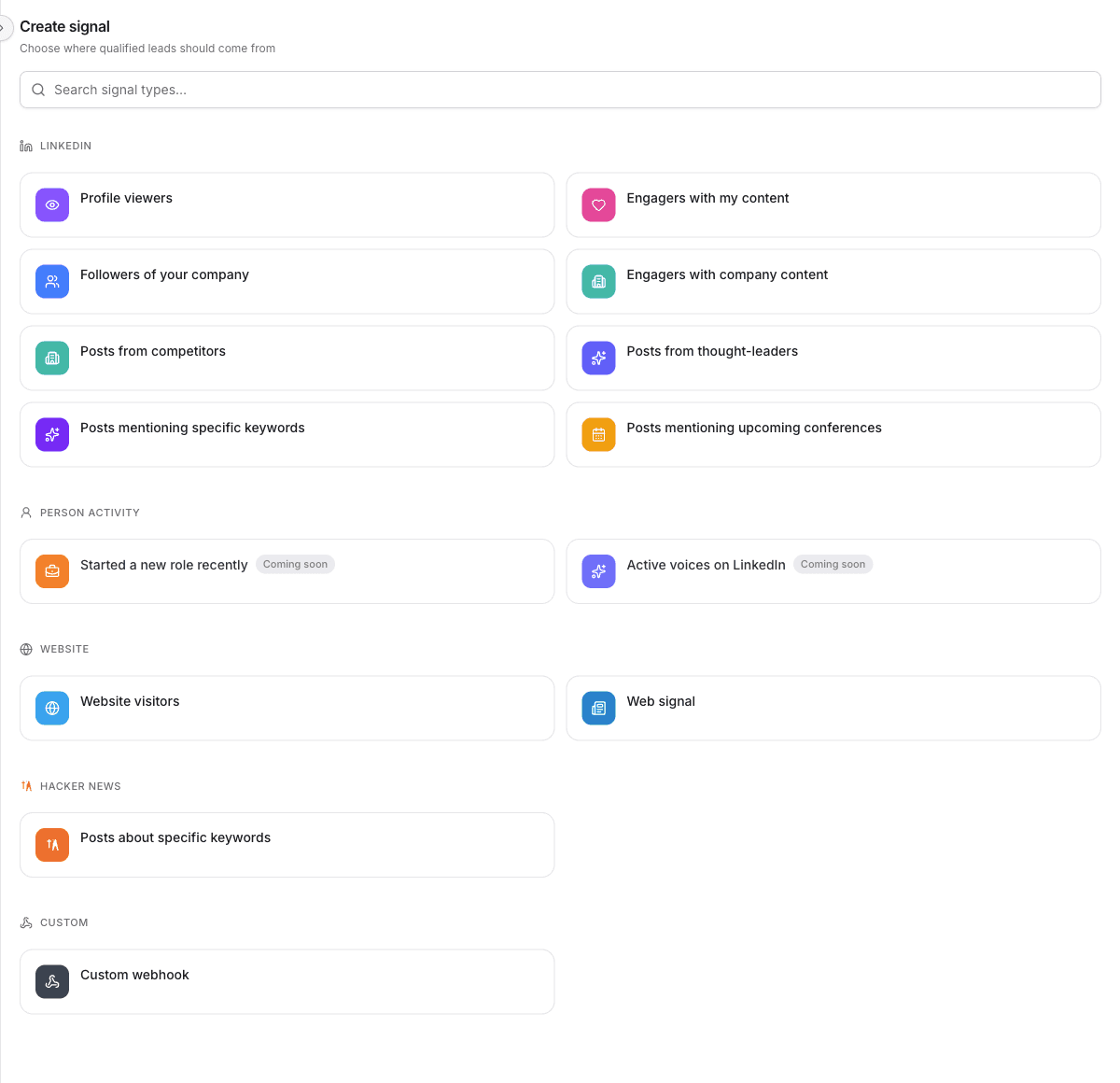
- On Source, fill in what that type asks for. For Engagers with my content, select the LinkedIn account.
- Click Continue.
- On Qualify, select the qualification agent. Only people who match it reach the feed.
- Click Continue.
- On Outreach, choose what happens after someone qualifies:
- Generate personalized outreach drafts a sequence and puts the lead in the feed.
- Add to campaign enrolls them in a campaign you already have.
- Click Continue.
- On Schedule, click Launch.
- Click Run now to check immediately, or Wait for schedule to let the next scheduled run do it.
The signal shows as Live in the Signals tab. People who pass qualification appear in Feed.
After it is live
- Open the signal to change the source, the qualification agent, the outreach, or the schedule.
- Last runs shows what each check found.
- Pause a signal from the Signals tab when you want it to stop without deleting it.
Signal types is the list of sources. Review the feed is what you do with the leads that arrive.